
COMPUTER DISASTER PREPAREDNESS
(The Backup Bible)
updated August 2025
If a major earthquake or other natural disaster strikes, will you lose essential
data? If your roof leaks onto your computer and shorts it out, will all your
family photos be gone? If something happens to you, a family member, or key
employee, does someone else know all the passwords to turn the computer on and access
computer accounts, email, and encrypted files?
Plan ahead to prevent losing your list of contacts, emails, tax records, photos,
bookmarks/favorites, crucial business data, and other essential files.
PASSWORDS AND USER NAMES
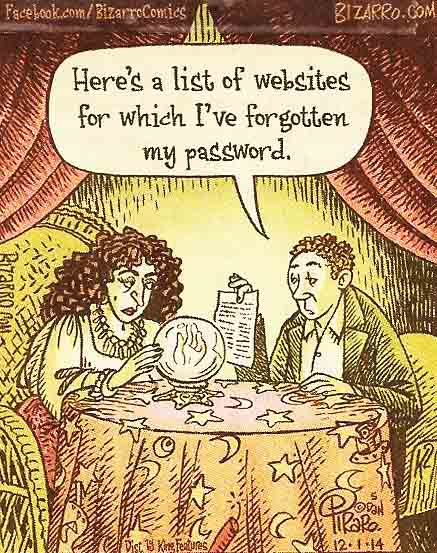
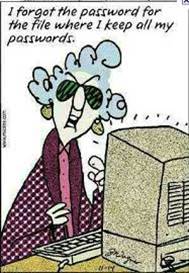
Make a list of all the passwords and usernames that you (and your family
members and employees) use. Write them down pencil and paper (legibly!) and put
them in your safe deposit box, email it to a senior company officer, or give a
copy to a trusted friend or family member. You
may prefer to type the file on your computer, but don't name the file
"passwords". Instead, name it something like Cleveland Vacation Photos, so
no hacker will be tempted to look at it. Put a copy of the list in your safe deposit box, along with your will
and medical power of attorney. On this list, include your cell phone and
tablet unlock codes, all usernames and passwords for: email accounts, computer login,
computer administrative user (for Macs and servers), online banking, cell phone
unlock code, Amazon account, Apple ID, Dropbox, Audible,
iCloud, Facebook, Google Drive, frequent flyer accounts, online shopping,
Kindles, router logins, Microsoft account, stock trading accounts, and file of
BitLocker encryption keys if you use them. If you use passcodes sent to your
cell phone instead of passwords, it is CRITICAL to have the unlock code (or
pattern) for your cell phone written down so someone else can access it.
Capitalization matters with passwords, so when you write them down, make sure
people can tell which letters are upper-case and which are lower-case.
Clearly distinguish the letter O from the number 0, and distinguish the number 1
from the letter I and lower case l, so people can read what you have written.
 Even
if you normally use your fingerprint to unlock your smartphone, make sure you
know what the unlock password is and write it down. If something happens
to you, your family will need the password to unlock it.
Even
if you normally use your fingerprint to unlock your smartphone, make sure you
know what the unlock password is and write it down. If something happens
to you, your family will need the password to unlock it.
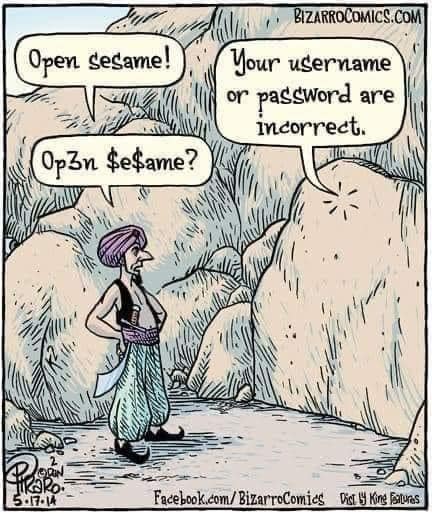
What makes a good password?
The EFF recommends using a
long string of words with no spaces between them. Something like
Myfavoritefoodsarechocolateandstrawberries5# with at least one capital letter, at least
one number, and a special character. That will satisfy password strength
requirements and yet be easy to remember.
 I keep all of my passwords in an Excel spreadsheet like the one in the grid
below. It is stored online, so I can access it from my phone, laptop,
desktop, a friend's house, while traveling, or anywhere. (You might prefer
to use Google Sheets or WPS Office by Kingsoft which is available in
Android version or
iOS version) Note the string of xxxxx in the password
column. I build my passwords around a common core and use the first few
letters from it in the password. For example, if my common core is
ILoveChocolate and the password column showed xxx, this would mean to insert the
first three letters of ILoveChocolate instead of xxx. I do this
so, if someone steals my phone or computer, or hacks into my online file, they
will not have my actual passwords. Print out a copy of your password spreadsheet
and also write down your common core on that piece of paper. Put a copy in
your safe deposit box, put a copy in a sealed envelope and give it to your
lawyer to keep with your will, and give copies to a trusted relative or friend.
If your house burns down or you are evacuated due to an earthquake or fire, you
will be able to access your email, banks, and insurance agents using this list.
Update it at least twice a year. Many people use three different common
cores - one for stuff they don't care about, like library cards, a second common
core for things involving small amounts of money like Amazon accounts, and a
third common core for banking, stock brokerages, Quicken files, etc.
I keep all of my passwords in an Excel spreadsheet like the one in the grid
below. It is stored online, so I can access it from my phone, laptop,
desktop, a friend's house, while traveling, or anywhere. (You might prefer
to use Google Sheets or WPS Office by Kingsoft which is available in
Android version or
iOS version) Note the string of xxxxx in the password
column. I build my passwords around a common core and use the first few
letters from it in the password. For example, if my common core is
ILoveChocolate and the password column showed xxx, this would mean to insert the
first three letters of ILoveChocolate instead of xxx. I do this
so, if someone steals my phone or computer, or hacks into my online file, they
will not have my actual passwords. Print out a copy of your password spreadsheet
and also write down your common core on that piece of paper. Put a copy in
your safe deposit box, put a copy in a sealed envelope and give it to your
lawyer to keep with your will, and give copies to a trusted relative or friend.
If your house burns down or you are evacuated due to an earthquake or fire, you
will be able to access your email, banks, and insurance agents using this list.
Update it at least twice a year. Many people use three different common
cores - one for stuff they don't care about, like library cards, a second common
core for things involving small amounts of money like Amazon accounts, and a
third common core for banking, stock brokerages, Quicken files, etc.
Many people have two-factor authentication (TFA) turned on for their email account, for added security. If you have TFA turned on, make sure there's a way for you to get into it if you lose your smartphone, or if you evacuate your house due to an earthquake, leaving your phone and tablet behind. This means either having a second email address that does not use TFA (import all your contacts from your primary email address) or have the TFA challenge go to someone who lives out of the area and thus they won't also be clobbered by the same earthquake or file that hit you.

In
addition to listing just your computer/smartphone login and password information,
I strongly recommend that you also make a
list of all your important contacts, assets and obligations in one place. This includes all
your bills, credit cards, banks, etc. If something happens to you, such a
list will save your family or heirs countless hours of hassle.
You can download a sample list in
Word (DOC) format or if you do not have Word installed, download the same
sample list in RTF format or the
sample list in PDF format.
Charles Schwab offers
this two-page list of other items to take care of, in case something happens
to you. It's also helpful to make a list of the bills that are autopaid
from your bank account, and bills that are autopaid from the provider.
Make a list of each type of autopay, including the usernames, passwords, and
account numbers (if any).
Some people like to use a password manager like LastPass, KeepPass, or others.
Here's
an article explaining what that is a really bad idea. The article
was written about LastPass, but it's only a matter of time until the other
password managers have data breaches also.
Some websites are starting to add support for passkeys, which are a replacement
for passwords.
This article explains what passkeys are, and how they are used. But a
word of caution - your passkeys are stored in your smartphone or tablet.
If you lose your smartphone or tablet, or forget the unlock code for it, you
can't get in with a username and password instead. If you do use
passkeys, it is CRITICAL that someone else have written down the unlock code (passcode)
for your smartphone.
INSTALLATION DISKS AND FILES
To recover from a disaster, you will need the installation files to install your software,
includnig any installation files you purchased and
downloaded. When you download software, save it on your computer in a folder called Install
Files in case you ever need it again, or buy from Amazon which has a one-stop
login for all software that you purchased for download. If you bought software on a CD, copy all the files
from the CD into a folder in the Install Files folder. Make
a file called INSTALLKEY for each program, with the authorization code, serial
number, or CD key, so
you can reinstall it if needed, and I recommend also including a link to the URL
where the file is downloaded from. Put this INSTALLKEY file in the folder
with the software that it unlocks. Do this for all software essential to keep your business
or household running. Don't forget to also save any downloaded printer driver files,
since at some future date they might be removed from the manufacturer's website. If you
are using older versions of software, even if it is freeware, it is essential to
save it. Software vendors commonly only post the most recent versions for
download, so make sure to keep archival copies of old software install programs
in your Install Files folder. Make sure to back up this folder as part of
your regular backup strategy.
www.ninite.com is a handy one-stop place for Windows users to download the latest versions of
common freeware such as Google Chrome, Zoom and WinRAR.
EMERGENCY DISKS OR RECOVERY DRIVE
When you buy a new Windows computer, one of the first things you
should do is to make a recovery flash drive.
You will need a flash drive that is 8 GB or larger. Do it NOW. If
you wait until the computer has a problem, you won't be able to make it.
Mac users instead can download a fresh copy of the operating system online, if
they have access to high-speed internet.
Instructions for creating a repair CD are
here for
Windows 7,
Windows 8 , and
Windows 10. Instructions to create a repair USB drive
are
here for Windows 8 and
here for Windows10
or 11 . You also can borrow one from me or a friend or
download the disk image online to create a recovery drive using a friend's machine. There are several different kinds
of recovery drives (Windows 7, Windows 8, Windows 8.1,
and Windows 10. Each comes in two flavors, 64-bit or 32-bit) and Windows
11 (which is 64-bit).
You will need to borrow
or download the correct recovery drive if you didn't make
one. You can download the ISO for the recovery CDs/DVDs here for
Windows XP, Windows 7, or Windows 8, or
download the install files for
Windows 10
or Windows 11
(click on blue box Download tool now). Note that a Windows 10 or 11 recovery disk
can be used to boot and diagnose a lower version of Windows as long as.it has
the same number of bits (32-bit or 64-bit).
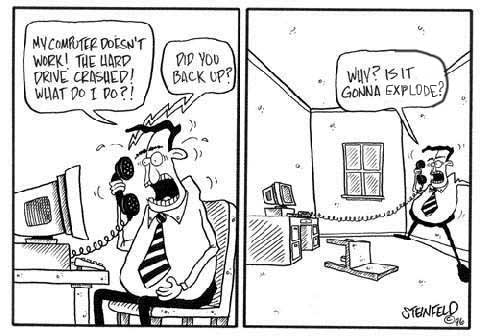
WHAT TO BACK UP
A dentist I know has a sign in his office which says, “You don’t have to brush
and floss all your teeth – only the ones you want to keep.” I should have a sign
in mine that says, “You don’t have to back up everything on your computer – only
the stuff that is important and you may need some day.” Many people never back
up their data, and then get upset when they lose family photos, tax records,
business records, school term papers, and other important files.
You can lose files due to earthquake, theft, fire, virus infection, or the
computer dying from heat or old age. Sometimes these files can be recovered at a
cost of thousands of dollars, but sometimes they are not recoverable at any
price. So BACK UP your important files. Do it often. Do it NOW.
Most home users do not need to back up the entire computer, just their data. But
businesses can’t afford for their computers to be down for days while they
re-install everything after a disaster. So businesses need to back up the entire
computer, in addition to backing up the data. Usually business computers are networked together.
The easiest way to back up a network is to back up the files to an online cloud
server. Or you can designate one computer as the network
master or server. Back up the data from all the subsidiary computers onto the master, then
back up the master (including the slave backups) onto a removable external
drive. Take this external drive off-site in case your building burns down.
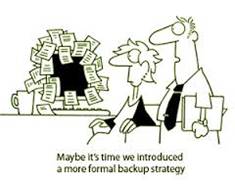 In the old days, all files were stored locally on your computer and you had to
remember to back them up. Nowadays you have a choice - keep your files
locally and back them up locally, or store them in the cloud using
Google Drive,
Dropbox,
iCloud,
OneDrive, or another cloud service provider.
I recommend Google Drive backup which is free if you are using less than 15
GB of storage for on your Google account, or you can pay a nominal fee for
additional storage. Even if you store files in the cloud, it's a good idea to locally back up your most
critical information such as your Contacts, old tax returns, and most important
documents. (See the section below on backing up online services.)
If, like most people, you use Gmail and Google contacts via the Google Chrome
browser,
turn on sync so it will automatically save your bookmarks, browsing
history, passwords and cookies to your online account.
In the old days, all files were stored locally on your computer and you had to
remember to back them up. Nowadays you have a choice - keep your files
locally and back them up locally, or store them in the cloud using
Google Drive,
Dropbox,
iCloud,
OneDrive, or another cloud service provider.
I recommend Google Drive backup which is free if you are using less than 15
GB of storage for on your Google account, or you can pay a nominal fee for
additional storage. Even if you store files in the cloud, it's a good idea to locally back up your most
critical information such as your Contacts, old tax returns, and most important
documents. (See the section below on backing up online services.)
If, like most people, you use Gmail and Google contacts via the Google Chrome
browser,
turn on sync so it will automatically save your bookmarks, browsing
history, passwords and cookies to your online account.
If you have an annual or monthly subscription to
Microsoft Office 365 - now
renamed Microsoft 365 (Word, Excel, PowerPoint, etc.), it includes 1000 GB of automatic backup space on Microsoft's OneDrive.
For files stored on your own computer, most home users back up these folders: Documents, Desktop, Pictures,
Favorites, Google Drive, Dropbox, Install Files, and Music. If you use
Firefox or Chrome, back up your bookmarks and Contacts if they
aren't synced to your Mozilla or Google account. If you use Outlook, Outlook Express,
Eudora, Thunderbird or other email software, make sure to back up your Contacts,
Inbox, and other email files in CSV format. (You must exit from these
email programs before you can back up their files.) You may also have other
folders such as SWSETUP or DRIVERS on your hard drive that need backing up, to
help you reinstall software on a replacement machine.
Don't forget to back up your mobile devices (cell phone, smartphone, tablet,
iPad, and laptop) if they have stored any
data or photos that aren't already in the cloud or on your desktop computer. If you
sync your mobile device to your computer, then backing up the computer will also
back up the data on the phone. I recommend using
Google Photos to
automatically back up every photo you take on your cell phone. This app comes pre-installed on Android
phones, or you can download it from the Apple App Store if you have an iPhone.
If you have an iPhone and you set it up with an AppleID account, by default it
will back up the pictures and contacts on your iPhone to iCloud.
Make sure to periodically back up your email contacts, online calendar, and email. To
export just the contacts, Gmail users can go into their contact list, then click
on More / Export. Save into your Documents folder, Google Drive, or Dropbox folder.
Or get detailed instructions for backing up Google Contacts, Google Calendar,
Google Drive, and other Google data at
https://www.google.com/settings/takeout and also check your Gmail
security settings including making sure you have a valid recovery telephone number
by visiting
https://www.google.com/settings/security Yahoo email users can export
their contacts but not their mailboxes. To export Yahoo contacts, click on
the Contacts icon on the left, then select Actions/Export. Mac users
commonly sync their Contacts and Photos to the
iCloud, which can rapidly
exceed the 5 GB free storage limit as photos get uploaded. Consider using
Google Photos
instead.

BACKING UP ONLINE SERVICES
In addition to backing up your computer, I highly recommend backing up your data
that is stored only online, so if you have a problem accessing the account, you
will not lose that information. Backing up your Google information is easy
- use the Google Takeout tool and you
can download the files immediately. Apple makes this much more difficult
and it takes several days to access the files through their
Privacy tool. Here's
how
to do it on Dropbox.
HARDWARE FOR BACKING UP
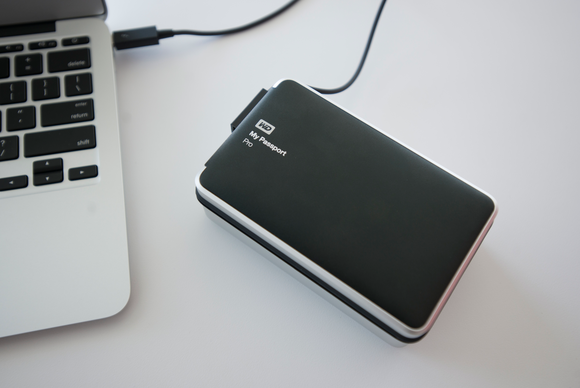 For
most people, backing up onto a local drive is NOT necessary. If you choose
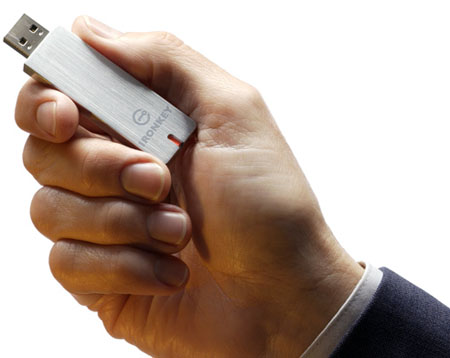
to do so, you can back up your data onto a USB flash drive if you don’t have a
lot of data, or onto a removable hard drive if you have too much for a flash
drive. USB flash drives cost about $20 for 256 GB. A removable hard drive costs about $70 for
3 TB (3000 GB), and external drives as large as 8 TB are available. You can also back up
your data using an
online backup service, where you don’t need to buy any hardware, as explained in
the software section below. USB 3.1 and 3.0 drives are much faster than USB 2.0
drives. If you buy a USB 3.1 drive and will be using it on an older machine, make sure it is backwards compatible to
USB 2. Computers manufactured in 2019 or newer will often have a USB-C
connector (which
looks identical to Thunderbolt 3). Most USB sticks have a standard USB
connector, some have USB-C connectors only, and some have
both shapes. You
can buy a
cheap adapter
allowing you to use a standard USB flash drive in a
device that has only a USB-C connector. BEWARE - do not use a network
attached storage device (NAS) that uses an ethernet connection since they have
reliability issues. Back up to a device that uses a USB connector.
For
most people, backing up onto a local drive is NOT necessary. If you choose
to do so, you can back up your data onto a USB flash drive if you don’t have a
lot of data, or onto a removable hard drive if you have too much for a flash
drive. USB flash drives cost about $20 for 256 GB. A removable hard drive costs about $70 for
3 TB (3000 GB), and external drives as large as 8 TB are available. You can also back up
your data using an
online backup service, where you don’t need to buy any hardware, as explained in
the software section below. USB 3.1 and 3.0 drives are much faster than USB 2.0
drives. If you buy a USB 3.1 drive and will be using it on an older machine, make sure it is backwards compatible to
USB 2. Computers manufactured in 2019 or newer will often have a USB-C
connector (which
looks identical to Thunderbolt 3). Most USB sticks have a standard USB
connector, some have USB-C connectors only, and some have
both shapes. You
can buy a
cheap adapter
allowing you to use a standard USB flash drive in a
device that has only a USB-C connector. BEWARE - do not use a network
attached storage device (NAS) that uses an ethernet connection since they have
reliability issues. Back up to a device that uses a USB connector.
Except
when actually running a backup, always disconnect and remove the backup drive
from the system. If the backup drive is turned on and running when a
large earthquake
hits, the drive and the data on it will probably be ruined. After disconnecting the backup drive, get
it out of the house or office, to protect it if there is a fire or burglar. So-called
“fire-proof” safes will not protect your hard drive from
an intense fire. Take your home backup to the office, and take the office backup
home. Keep your USB flash drive in your purse, pocket, neighbor’s house, or give
it to your kids. Remember that USB flash drives are easily broken. Do NOT lose
the cap, and do NOT touch the metal connector on the end, especially on dry days
with lots of static electricity, which will permanently fry the drive. Keep your
removable hard drive in your bank safe deposit box, neighbor’s
house, or someplace else AWAY from the computers it is backing up. If you
store it at home, put it low to the ground so it won't get damaged falling off a
high shelf. Get your backup OUT of your house or business, so if you have
a catastrophic fire, your backup won't burn up along with your primary computer.
There's no such thing as a fireproof safe - even the best safes are only
fire-resistant. Water used to fight a fire or water from a flood can ruin
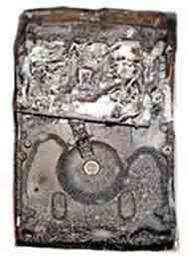
a backup drive in seconds, even inside a tightly-sealed safe. The graphic
at the right shows a hard drive that was in a "fireproof" safe. Or check
out this
video filmed in November 2017 showing a man digging through the ashes inside
a "fireproof" safe to find an engagement ring he planned to give to his fianceé.
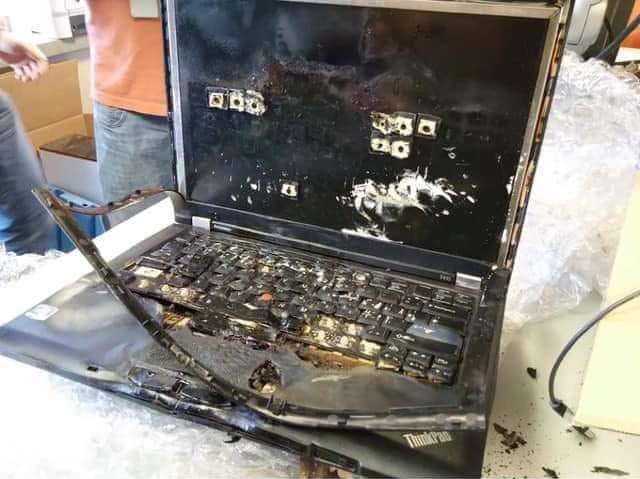
Below
you will find photos of a computer and hard drive that were was stored in a
"fireproof" safe.
Caution - data stored on a spinning hard drive will be readable for at least 4
years, after which it should be copied anew, so it isn't lost. But data on
SSDs deteriorates much sooner. Data on SSDs should be refreshed once a
year to prevent data loss. This
data loss
is called "bit rot" or "bit flux." To prevent bit rot, for SSDs I
recommend copying the entire drive onto a new, freshly-formatted drive once a
year.
Mac users with a combination router/TimeCapsule cannot turn it off without losing your internet
connection. So if you use TimeCapsule and you need on-site backup, in addition, you need to buy a
separate external hard drive for backup (or back up to the cloud). Periodically, copy the contents of the
Time Capsule onto the removable hard drive, turn off the hard drive, and get it
out of the house. If the TimeCapsule is turned on and running when you get
hit by a lightning strike, strong earthquake, burglar, or leaky roof, you will lose the
contents of the TimeCapsule, so turn it OFF and get it OUT of the house.
Bring it back home from time to time to do the backup. Or get two identical TimeCapsules and alternate them home and to the safe deposit box. Or
better yet, ditch the Time Capsule and use real-time automatic cloud backup
using
Google
Drive, DropBox, or
Microsoft OneDrive.
 Be very careful if you use a
network attached storage (NAS) device, or RAID for
backup. (If you don't know what these words mean, you are not using it.)
The backups made by these devices can usually only be read using the exact same hardware
and software that created them. If the NAS device or computer running RAID
fails, unless you can buy the exact same hardware and locate the original software, your
data will probably be unreadable. So my advice is either not to use them, or to
purchase two identical sets of hardware and keep one unused, not plugged in, as
a spare. Better yet, get an inexpensive Windows computer and back up data onto
it instead of
an NAS. This inexpensive Windows computer can also serve as an emergency
computer if the primary one fails. Or better still, use automatic
real-time backup with
Google Backup
and Sync.
Be very careful if you use a
network attached storage (NAS) device, or RAID for
backup. (If you don't know what these words mean, you are not using it.)
The backups made by these devices can usually only be read using the exact same hardware
and software that created them. If the NAS device or computer running RAID
fails, unless you can buy the exact same hardware and locate the original software, your
data will probably be unreadable. So my advice is either not to use them, or to
purchase two identical sets of hardware and keep one unused, not plugged in, as
a spare. Better yet, get an inexpensive Windows computer and back up data onto
it instead of
an NAS. This inexpensive Windows computer can also serve as an emergency
computer if the primary one fails. Or better still, use automatic
real-time backup with
Google Backup
and Sync.
SOFTWARE FOR DATA BACK UP
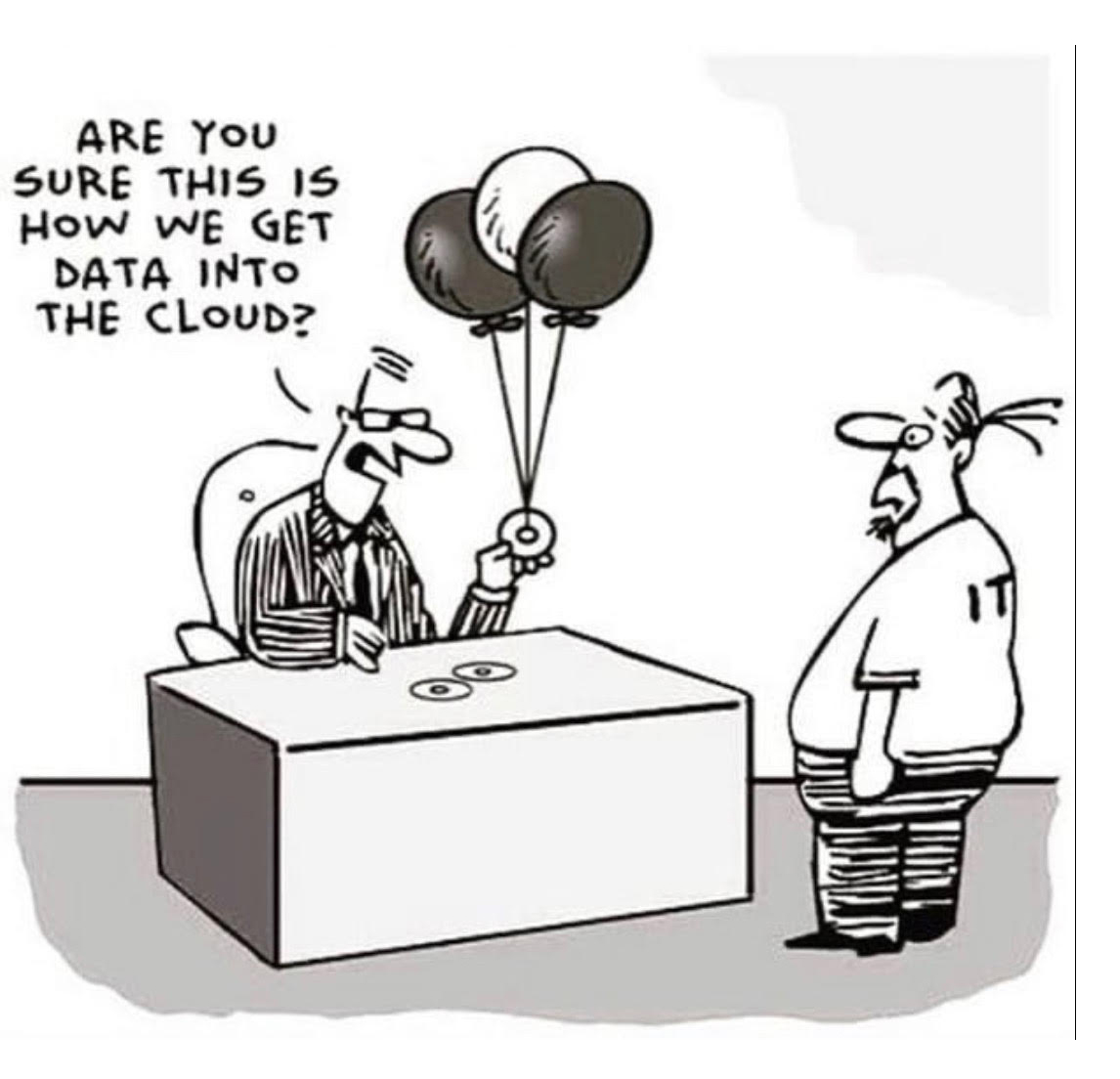
These days, most people elect to back up to the cloud instead of backing up data locally. The most common method is Google Drive backup which currently gives you 15 GB free storage (which includes your Gmail files). You can pay for more if you need it, but 15 GB is enough unless you have thousands of email attachments, pictures, videos, or songs. Current prices for additional storage are listed here. Once you install Google Drive, you will indicate which folders you want backed up to Google Drive on the cloud. You can have some files back up, and other files sync. If you want to sync, it will create a local folder called Google Drive and these files will synchronize to your other devices such as tablets and smartphone. The initial upload will take a while, depending on how many files you have. The business version, Google One , is HIPAA certified and thus can legally be used in medical offices to store sensitive patient information. You can also use the Google Photos app on your smartphone for automatic upload of photos from your camera to your Google storage whenever you are in WiFi range.
Alternatively,
Windows and Mac users can use Dropbox. When you install the program, it
sets up a folder called Dropbox. Any file
you copy or save into the Dropbox is almost instantly backed up to servers in
Arizona, automatically, every time you edit it, as long as you are connected to
the internet. You can access these Dropbox files from any computer anywhere,
using your email address and password. You can also set up a public folder which
allows you to share files (like photos of your kids) with anyone. You get 2 GB of
free storage, and only pay if you exceed 2GB. The
Dropbox home page has a video tutorial that
explains how it works. Once you install Dropbox, move your important files into
the Dropbox folder. Dropbox works great at synchoronizing files on up to 3
devices, or more if you have a paid account. Dropbox pricing is available
here.
 If you are paying Microsoft a monthly or annual fee to rent (subscribe to) the
Office suite (Word, Excel, PowerPoint, etc.) via
Microsoft 365 (formerly called Office 365), this includes a subscription to the
online automatic backup service called
OneDrive. I do NOT recommend
OneDrive since it is clumsy to use and often results in having two different
folders called Documents and two different folders called Pictures. This
confuses many users. Once you stop paying for the OneDrive subscription,
you will lose your backed-up files. So only use OneDrive if you plan to
keep paying for a Microsoft subscription forever.
If you are paying Microsoft a monthly or annual fee to rent (subscribe to) the
Office suite (Word, Excel, PowerPoint, etc.) via
Microsoft 365 (formerly called Office 365), this includes a subscription to the
online automatic backup service called
OneDrive. I do NOT recommend
OneDrive since it is clumsy to use and often results in having two different
folders called Documents and two different folders called Pictures. This
confuses many users. Once you stop paying for the OneDrive subscription,
you will lose your backed-up files. So only use OneDrive if you plan to
keep paying for a Microsoft subscription forever.
When you back up locally onto a removable hard drive or flash
drive, make sure you are backing up uncompressed, unencrypted data, so it can be
recovered using any computer, without needing a particular vendor's product to
do the recovery. Many backup programs and most network attached storage
devices save the data in bizarre formats that are impossible to recover if you
have a hardware or software failure. Either drop and drag your files onto
the external drive, or use the software recommended below.
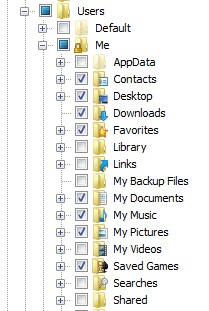
If you don't want to have automatic backup to the cloud,
Windows users can automate data backup using the excellent program GFI Backup
which is free to home users. (download
here) GFI performs an incremental backup on just the files that have
changed since your previous backup. You put little check marks (see graphic to
the right) next to the
important folders that you need to back up, and it does the rest for you. Do NOT
use GFI in automatic mode. Instead, manually run the program when you need it,
so you can disconnect the backup drive from the system. You can selectively
restore individual files from GFI. Do not use GFI to back up the entire
computer, just use it to back up the data. By default, GFI will save data
unencrypted and uncompressed. Don't fiddle with these settings.
The newest version of GFI backup requires you to use a login password for your
main Windows account. If you have a blank login password, use an older version
of GFI, which you can download
here.
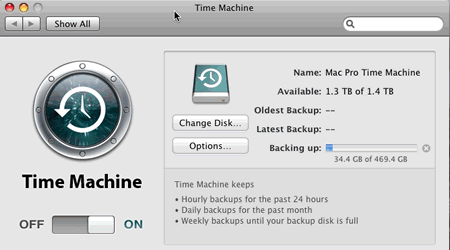
Mac
users can use TimeMachine to back up their data and their system.
I do NOT recommend using TimeMachine. Do NOT use TimeMachine in automatic mode. Instead, manually run the backup, then disconnect
and remove the backup drive from the system. If a major earthquake hits
while your TimeMachine (or any other spinning backup drive) is turned on and
running, the data will be lost when the shaking destroys the drive. TimeMachine allows you to
selectively restore individual files or the entire computer. If
you use a TimeCapsule, you cannot turn it off without losing your internet
connection. So if you use TimeCapsule, in addition, you need to buy a
separate external hard drive for backup. Periodically, copy the contents of the
Time Capsule onto the removable hard drive, turn off the hard drive, and get it
out of the house to protect your data in the event of a fire or burglary.
SOFTWARE FOR SYSTEM BACKUP
If you install a bunch of programs or do a lot of customizing to Windows or the
Mac OS, you should back up your entire computer so you can restore it if the system
won't turn on or if it gets a nasty virus infection that cannot be removed.
The next few paragraphs are specific to Windows users - skip to
the Mac section if you have a Mac.
Before starting the system backup, it's a good idea to run a CHKDSK, then Disk
Cleanup, then a second Disk Cleanup and check the box to clean up system files,
then run CHKDSK again. When running Disk Cleanup, check all the boxes
except for Thumbnails. To run Disk Cleanup, click on Start,
then in the search box type Disk Cleanup or
follow these instructions. To run CHKDSK, click on Start, then in the
search box type CHKDSK or
follow these instructions.
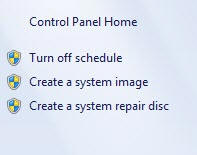
Windows 7, 8, 10 and 11 have a built-in program for
creating a system image, which backs up the entire computer, not just your
data. To make a system image
use these instructions or click on Start/All Programs/Maintenance and enter the Windows Backup and Restore
Center. Or click on Control Panel / System and Security / Backup and Restore. Choose
whether to recover everything, or just recover individual files.
A
complete system image can take several hours to create if you have lots of data. To recover
from a disaster, most people install a clean copy of Windows, then recover their
data and install the software that they need. Or you can do a complete
system image restore,
then use GFI (or Dropbox or Google Drive) to recover files that have changed since the system image was
created. If you decide to use Windows to create a
system image, you should create a bootable Windows flash drive. You will
need a flash drive with a capacity of at least 8 GB. The disk will be
completely erased as part of the creation process. Microsoft provides
this page
to create a Windows 11 disk or, if you are still running
Windows
10, go to this page instead. If you need to recover and didn't make the disk, don't panic.
Read the information above on Recovery Disks or borrow
one from me.
In Windows 11, 10, 8 or 8.1, you can mount a Windows system image
to browse for files, copy them, or restore them individually or in bunches.
When you create a new Windows System Image for a given computer, it will delete
the old System Image unless you rename the old file before creating the new
image. If you have room on the hard drive, it's a good idea to keep the
old version around. On your backup drive, open the WindowsImageBackup
folder, look for the computer name, and rename the image file something like
WindowsImageBackupDec2014. In order to restore this file, you will need to
rename it back to WindowsImageBackup from the DOS prompt during the recovery
process.
You
may prefer to buy the software program
Acronis TrueImage Home for system backup. Acronis is inexpensive and is available
here.
Make sure to make a bootable
rescue disk using the Acronis software. You will make a bootable rescue CD if your
computer has a CD drive, or a bootable USB if your computer has no CD/DVD drive.
Mac
users can use TimeMachine to back up their data and their system. Do NOT use
TimeMachine in automatic mode. Instead, manually run the backup, then disconnect
and remove the backup drive from the system. See the explanation
above under Hardware. Time machine does incremental backups which can
greatly complicate recovery in the event of a total system crash. I
recommend, if you use Time Machine, to once a year wipe the recovery drive and
do a clean (complete, not incremental) backup.
I do not recommend using Carbonite,
BackBlaze, or any other online backup service for system
backup. It slows down the computer, and greatly slows down your internet
speed. If you need to do a complete system recovery, it can take several
days to download the entire system data to be recovered, or you need to wait for
them to mail you a set of recovery disks or recovery flash drive.
ENABLING SAFE MODE
If your Windows computer has a major problem and won't boot normally, you can often boot
it into Safe Mode to limp along and copy your files that you forgot to back up.
In Windows 7, safe mode is enabled by default and you can boot to it by hitting
F8 repeatedly immediately after turning on the computer. This does not
work in Windows 8, 10, or 11. For these operating systems, to enable safe mode.
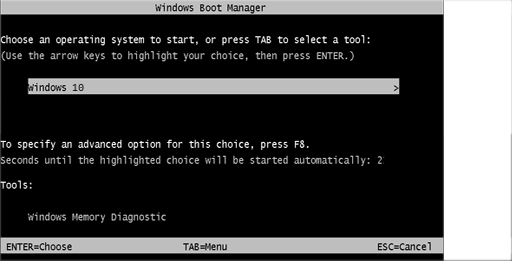
To enable entering safe mode with F8,
open an elevated command prompt
and type in the following three lines, one at a time. Each time the computer
boots, it will briefly flash the screen shown at the right. You have 1/2 second to
hit the F8 key when you see this screen, if you want to enter Safe Mode.
bcdedit /set {bootmgr} displaybootmenu yes
bcdedit /timeout 4
bcdedit /set {default} bootmenupolicy legacy
HOW OFTEN TO BACK UP DATA
Back up your data as often as it changes significantly. I back up at least once
a month. If I am working on something long and complex, like my taxes, I back up
those files at least once a day. Businesses usually do a daily backup or
twice-daily backup. Most businesses also use Google Drive, Dropbox or other real-time
system for their crucial files so they are always backed up.
ALWAYS turn the backup drive off (or eject it) and disconnect it, except when you are actually
running the backup. If an earthquake strikes and the computer is on, and the
backup drive is plugged in, you will lose the data on BOTH of them. Store the
backup drive lying down, someplace close to the ground where it won't fall
over or fall down if there is an
earthquake.
For businesses, I recommend doing a full system image backup once a month. For
home users who choose to do a full system image, once or twice a year is enough, but most
home users choose to not bother doing a full system image. If their home
computer dies, they usually pay to get it fixed or buy a new one, and the
downtime isn’t critical like it is for a business.
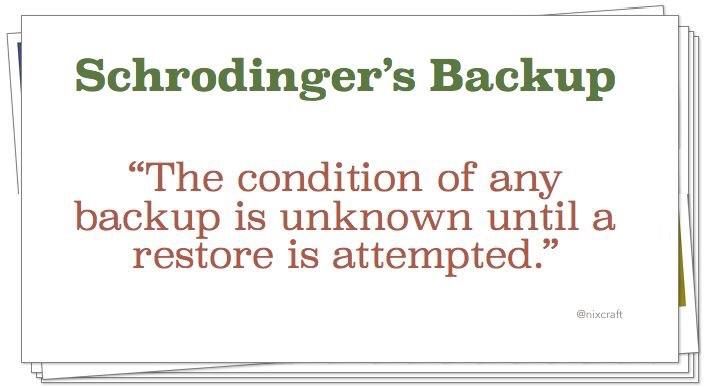
Periodically, check your backup drive to make sure your data is actually getting
backed up, and that you can read the backup. All too often, people ask me
to recover data from a backup drive that is empty. They THOUGHT they were
backing up, but the backups never happened.
HOW TO RESTORE DATA FROM GOOGLE DRIVE OR DROPBOX
If you have backed up your data to Google Drive or Dropbox, your files are
safely stored there. Just make sure you have the username and password for
that account written down some place safe, on paper, not just in your computer.
Google - To recover your data onto a new computer,
install Google
Drive on the new computer and log in to the same Google account to
which your files are backed up. Then go to
https://drive.google.com and log in to
your Google account. If you set up Google Drive to sync, you can choose to
mirror the files from the cloud, or access them on-demand only. If you set
up Google Drive to back up, you will see the files backed up on each computer in
the left column. You can drop-and-drag these files from the old computer's
folder to the folder for your new computer. Or, better yet, move the files
into Google Drive and they will sync.
Wait for the files to synchronize - depending on how many files you have, this
may take minutes, hours, or days.
Dropbox - To recover your data onto a new computer,
install Dropbox on the new
computer and log in to the same Dropbox account to which your files are backed
up. The files will automatically start to synchronize. Depending on
how many files you have, this may take minutes, hours, or days.
Google Drive and Dropbox both allow you to roll back to a previous version of a
document, or a deleted document. They keep 5 old versions for up to 30
days. Past 30 days, those old files are no longer saved and you can no
longer roll back to them. Here are instructions for
Google and for
Dropbox.
HOW TO RESTORE AN ACRONIS SYSTEM BACKUP
Boot to your Acronis bootable flash drive, then run Acronis True Image. Click on "Restore / My drives." Plug in the external backup drive on which your image is stored. Wait 60 seconds for it to detect. Now browse to that location and select the image that you want to restore, and the destination drive. Click "proceed". Depending on the size of your image, it may take 15 minutes to several hours to restore. When the recovery is done, close the recovery window and unplug the external backup drive. Now close Acronis and watch the black-and-white screen for the words "system shutdown". When you see that, quickly unplug the Acronis bootable flash drive.
HOW TO RESTORE A WINDOWS SYSTEM BACKUP
Insert a bootable Windows flash drive and boot to it. When it asks if you want to install or not, choose the other option - to repair the computer. Then select Advanced - and Restore a system image. Connect your external backup drive and the computer should automatically detect the image. If you have renamed the image, you'll have to un-rename it for the computer to detect and restore it. The backup to be restored must be named WindowsImageBackup, Recoveyr will take between 15 minutes and several hours, depending on how large your image it.
If the computer boots, instead of using an external Windows flash drive to do
the recovery, you can hold the shift key down while restarting and enter
recovery mode that way.
UNINTERRUPTIBLE POWER SUPPLY
Most businesses have an
Uninterruptible Power Supply (UPS) attached to their
most important computers. A UPS is a four-pound battery with its own power
strip. The battery charges during normal use, and has enough power to keep
your computer running for about 15 minutes if there is a power outage. This
permits you to save what you are currently working on, and back up the files,
before shutting down the computer. Note that a UPS won't help you if there
is major shaking due to an earthquake, because then the data on your computer
will be damaged and lost. But if there is a power outage due to wind or a
fire at the power distribution center, a UPS will let you run long enough to save your information.
Most home users don't need one. UPS are sold at office supply stores,
computer stores, and online through Amazon and other vendors. I recommend
the manufacturer APC. An UPS will also protect your computer from
damage due to surges
on the power line and protect it from brownouts.
YOUR WILL AND DIGITAL EXECUTOR
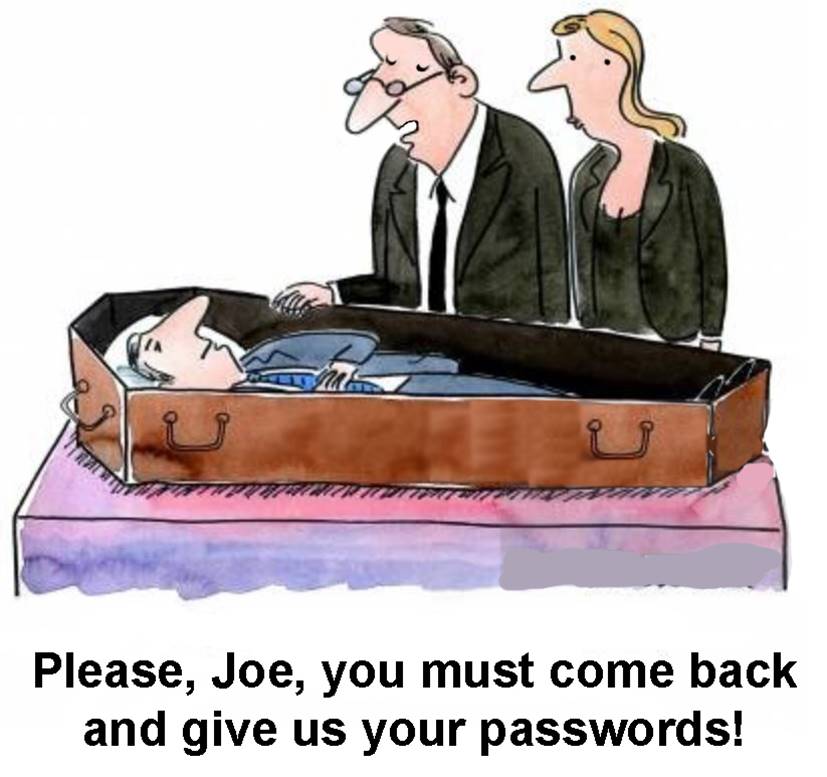
You may want to appoint a digital executor in your will, or specifically grant
powers over your digital information to your executor. Read this
article from Yahoo Tech for further information, including
language you can
include in your will to cover digital information.
MORE INFORMATION
You can view a PowerPoint summary of these issues
here.
The PowerPoints are not updated as frequently as this Backup Bible.
Questions? Need help? The Computer Doctor is a consulting computer
service based in Menlo Park to help individuals and small businesses with their
computer problems. Visit our website
www.suekayton.com for more information, or email Sue Kayton,
kayton@alum.mit.edu